Wednesday, May 15, 2013
Tuesday, March 12, 2013
March 2013 eNewsletter
5:06 PM
Carl Thorne
Why not subscribe to my newsletter? We will never sell or share your email address. Unsubscribe at any type by clicking the unsubscribe link at the bottom of the newsletter.
For Email Marketing you can trust
Tuesday, March 5, 2013
Seven Things I Learned Recently That You Need to Know
10:33 AM
Carl Thorne
By default, the schedule to virus scans is turned off. Follow this link for a how-to to fix this problem.
http://www.scribd.com/doc/128642883/Avg-Free-Edition-Changing-the-Scan-Schedule
Update iOS to 6.1.3 when available.
The passcode feature for iPads and iPhones has been compromised by the 6.1.2 upgrade to iOS. This bug will be fixed in 6.1.3. Make sure you upgrade to this release when it becomes available.
http://support.apple.com/kb/ht4623
Backup iPad and iPhone the old fashioned way.
A recent iOS update wiped out users' iPhone/iPad iCloud backup. Back up your iPhone/iPad through iTunes by connecting your device to your computer.
http://support.apple.com/kb/ht1766
Test your computer backup.
How do you know the backup you have been doing, will restore your files when you need them? Test the restore process now - before you need it - so that you can fix any problems in advance.
Look at the age of your computer and plan accordingly.
No one wants to spend money unless they have to. Any computer more than 5 years old is a candidate for replacement. Replacing a computer before it crashes is easier than afterwards.
Test your Internet connection speed.
Are you getting what you paid for? If the connection is slower than what you paid for, get your Internet Service Provider to fix the problem or downgrade to a lower cost package.
http://www.speedtest.net/
Make sure Java and Adobe Flash Player are getting updated automatically.
Download the latest versions of Java and Adobe Flash Player and install them. Make sure you enable automatic updates during the installation process.
Java download: http://www.java.com/en/download/index.jsp
Adobe Flash Player download: http://get.adobe.com/flashplayer/?promoid=BUIGP
Make sure to uncheck the box that also downloads McAfee Security Scan Plus when downloading Flash Player.
Carl Thorne
Expert Computer Consulting
voice: 404.229.0839 email: carlthorne@hthcatlanta.com
web: hthcatlanta.com blog: hthcatlanta.blogspot.com
Monday, March 4, 2013
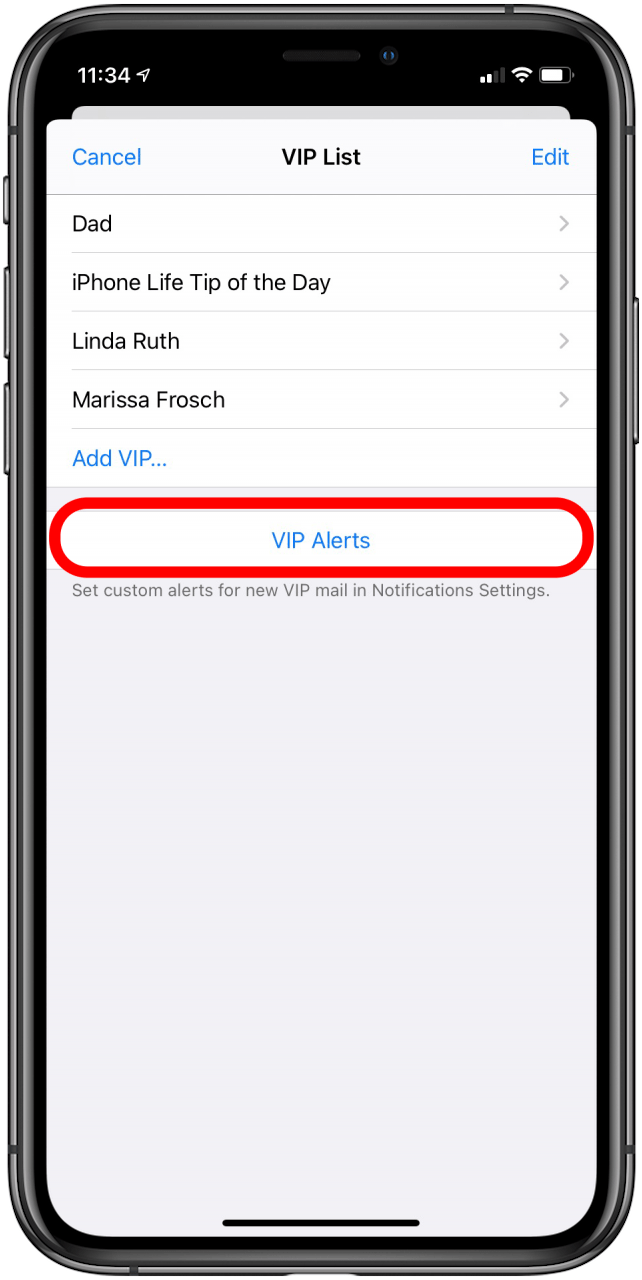
How to Block a Caller to Your Cell Phone
8:50 PM
Carl Thorne
How do you block a phone number from your cell phone?
There are two ways I am aware of:
- Add a service or feature to your cell phone plan from your cell phone provider. Usually, this is an addition monthly charge and the number to be blocked is entered on the cell phone providers website.
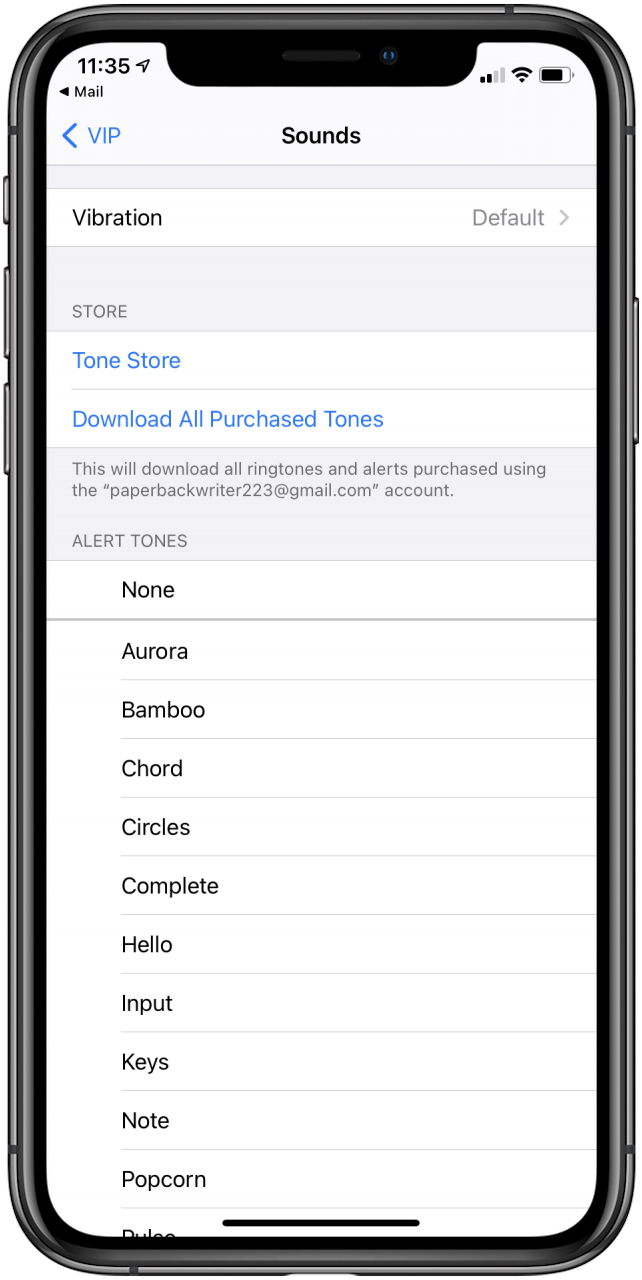
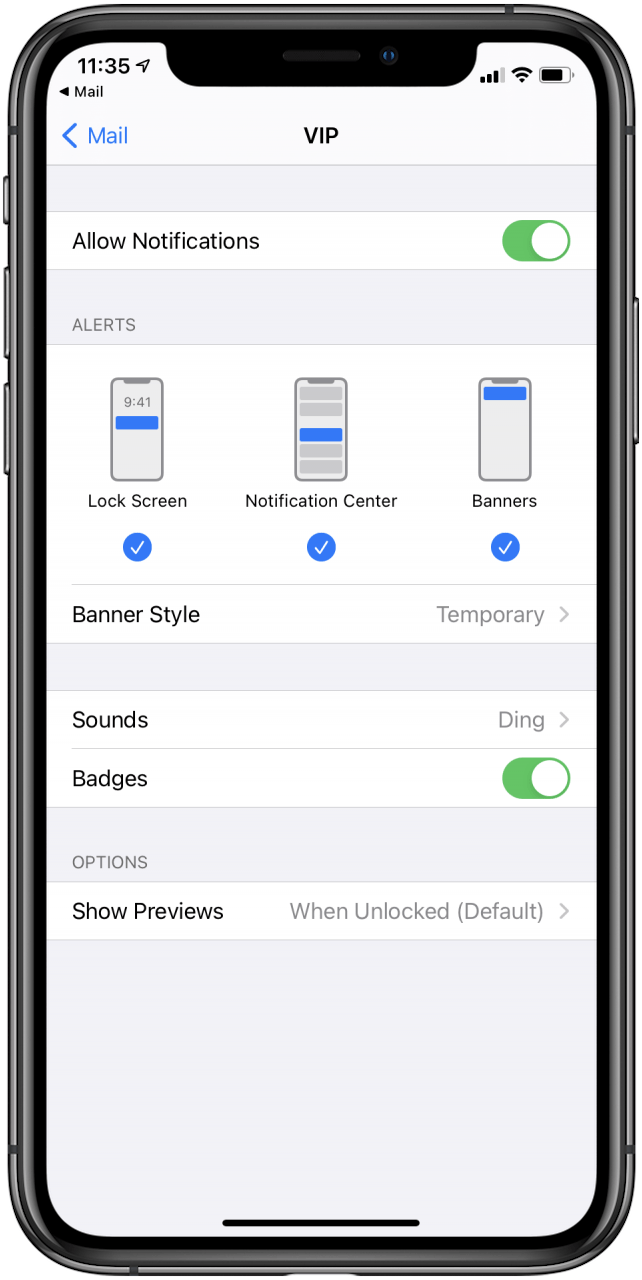
- Create a silent ring tone and make a contact for them and set the ring tone to silent. Technically, this is not blocking the call, but you will not be bothered by your cell phone ringing when this number calls.
Expert Computer Consulting
voice: 404.229.0839 email: carlthorne@hthcatlanta.com
web: hthcatlanta.com blog: hthcatlanta.blogspot.com
Saturday, March 2, 2013
Encrypting Your Computer Hard Drive
3:12 PM
Carl Thorne
Do you have information on your computer that is sensitive?
Every day we see reports of corporations having their data compromised or exposed. Is is possible that a hacker could gain access to your computer hard drive and compromise your data?
What can you do to minimize your risks?
Once you download and install the software, read the Beginners Tutorial (http://www.truecrypt.org/docs/). When you have built your encrypted container, you can move your sensitive data there.
Every day we see reports of corporations having their data compromised or exposed. Is is possible that a hacker could gain access to your computer hard drive and compromise your data?
What can you do to minimize your risks?
- Ensure you have a good anti virus program running on your computer.
- Keep your operating system and application software updated to minimize security holes that can be exploited by hackers.
- Make sure you have a tested backup and recovery process in place.
- Encrypting your data. A free product to consider is TrueCrypt. www.truecrypt.com
Once you download and install the software, read the Beginners Tutorial (http://www.truecrypt.org/docs/). When you have built your encrypted container, you can move your sensitive data there.
- When you supply the correct credentials, the container is visible to your computer and your applications like any computer hard drive.
- Programs will run normally using the data on the encrypted container.
- When you dismount the container, this is the same as removing a USB Jump Drive from your computer and putting it in your pocket. The container is no longer visible to your computer until you mount the container again with the proper credentials.
- Make sure you have a backup of your credentials and have stored your password in a safe place. Without these two pieces of information, you will be unable to mount the encrypted container.
- If the container is not mounted, it cannot be backed up. If you dismount the container at the end of the day and your automated backup runs at midnight, the backup program will not find your container to back it up.
Carl Thorne
Expert Computer Consulting
voice: 404.229.0839 email: carlthorne@hthcatlanta.com
web: hthcatlanta.com blog: hthcatlanta.blogspot.com
Sending a Secure Email Easily
2:40 PM
Carl Thorne
How many times have
you wanted to convey written information that was sensitive in nature?
Sending someone your credit
card information is one example. One method might be to divide the information into three
emails. However, this can still be risky.
Encrypting an email can be a very complex process.
One solution that bypasses much of the complexity is provided by Sendinc. http://www.sendinc.com/about
Creating an account and downloading a plug-in for Outlook
allows you to send encrypted email to anyone with an email address. The recipient
is sent a link to create a Sendinc account. Once that account is created, the
message is decrypted.
- You're ready to send secure email as soon as you create an account.
- There is no software required and no encryption keys to manage.
- It's free to send and receive messages.
- It works anywhere, for any email client, and from any web-enabled device.
Any future message sent to the same recipient will require
the Sendinc account password to decrypt the message.
Carl Thorne
Expert Computer Consulting
voice: 404.229.0839 email: carlthorne@hthcatlanta.com
web: hthcatlanta.com blog: hthcatlanta.blogspot.com
33 Expert Tips and Tricks for iOS 6
1:40 PM
Carl Thorne
Dan Moren and Lex Friedman
http://www.macworld.com/article/2027220/33-expert-tips-and-tricks-for-ios-6.html?page=0
Perhaps you are already an iOS master. Or maybe you consider yourself more of a novice. Either way, we feel confident that at least some of the tips and tricks for iOS 6 that we present below will be new to you. What’s more, we hope you love them—and benefit from them—as much as we do.
http://www.macworld.com/article/2027220/33-expert-tips-and-tricks-for-ios-6.html?page=0
Perhaps you are already an iOS master. Or maybe you consider yourself more of a novice. Either way, we feel confident that at least some of the tips and tricks for iOS 6 that we present below will be new to you. What’s more, we hope you love them—and benefit from them—as much as we do.
Spread
the word
Once
you've enabled Speak Selection, you can get your iOS device to read any
selectable text aloud.
Your iPhone or iPad can read to you. Enabling the Speak option makes it possible for your iOS
device to read aloud any selectable text. Launch the Settings app, tap on General,
and then choose Accessibility. Scroll down to Speak Selection, and tap
to turn it on.
Now, go into any app where you can
highlight text. Your options include Mail, Safari, Notes, and many others.
Select some text, and you’ll see a new option appear in the contextual menu
(you may have to tap the right arrow to view more options). Tap the Speak
command, and your iOS device will start reading the text aloud.
The
Emoji keyboard lets you insert all kinds of fun images wherever you can type.
And your iOS device can speak the names of those symbols, too.
Enable the Emoji keyboard. Perhaps you’ve seen these iconographic symbols in emails,
iMessages, and tweets, and wondered how the heck people managed to type them.
Maybe you’ve mistakenly assumed that you need to purchase a third-party app to
gain access to those special symbols.
You don't: Apple treats those
symbols, called Emoji, as an international keyboard. Launch Settings,
and tap General, International, Keyboards. Then tap Add New Keyboard
and find Emoji. Now open an app where you can type some text.
Next to the spacebar, you’ll see a
little globe icon. Tap it to switch between your regular keyboard and the Emoji
one, which contains many tabs full of different characters. Tap on those
characters to insert them wherever you’d like. (If you have many international
keyboards, tap and hold the globe to bring up a menu of all your options.)
Spoken Emoji. For real fun, type in a bunch of Emoji symbols, select them
all, and then tap the Speak button. You’ll hear the often-entertaining names of
each symbol read in sequence.
A
series of Siri tips
Use the “in transit” cue. Ask Siri to help you find an address with a couple extra
words at the end, as in: “give me directions to San Francisco International
Airport via transit.” iOS will open up the Maps app and display the routing
pane, which lets you choose which third-party app you’d like to supply your
directions.
Attentive readers will know that
Google Maps is included among these routing apps, which means that you can actually
use this trick to get directions via Google Maps using Siri.
When
your Siri-capable iOS device is paired via Bluetooth, tap that blue button to
choose which microphone Siri should use.
Siri audio output. If your car has a built-in speakerphone, or if you have a
Bluetooth accessory that has a microphone and speakers, you can choose which
one Siri listens to for commands. When you click and hold the iPhone’s Home
button, you’ll see a speaker icon to the right of the main Siri button. Tap it,
and you’ll get a menu of all the various sound inputs your iPhone can use;
select the one you want, and Siri will listen using that microphone and, if
possible, give its feedback via those speakers.
Siri
can help you find unusual actor pairings.
Your own private IMDb. You probably already know that you can use Siri to get
information about what’s playing at movie theaters near you. But Siri’s also in
expert in pretty much every motion picture ever made. That means you can ask
questions about your favorite films, but you can also make Siri do more of the
legwork for you when, say, you’re curious about which films specific actors
have appeared in together. You might ask, “What movies star both Susan Sarandon
and Tim Curry?” And Siri will, in turn, reply with both The Rocky Horror
Picture Show and Rugrats In Paris.
Get movie reviews. Not sure if a given movie is worth your time? Just ask
Siri: “Is Rugrats In Paris any good?” Siri replies with a review from
Rotten Tomatoes.
Editing Siri. Sometimes Siri doesn’t understand you quite right. Maybe
you told it to call your friend “Aaron” and it thought you said “Erin.”
Fortunately, you can fix Siri’s mistake; after Siri reports that she doesn’t
know what you’re talking about, scroll up and find the speech bubble where Siri
records what it thinks you said. Then tap that bubble, and you’ll find that you
can now edit what Siri heard and resubmit your request.
If you don’t want to bother typing
out a long correction, you can also use iOS’s built-in dictation feature to
enter your corrected text. Just tap the microphone in the keyboard and speak
your text aloud. We’ll give you time to make your own Inception joke
about using Siri to fix Siri.
Siri can help you post to your
favorite social network. If you
use Facebook and/or Twitter, Siri offers a bunch of helpful options. You can
say “Post to Facebook I love reading Lex and Dan’s stuff at Macworld.com,” or
“Write on my Wall I love Siri,” or even, “Post I’m an over-sharer to Facebook.”
With Twitter, you can say “Tweet I’m eating breakfast” or “Post I’m still
eating breakfast to Twitter,” along with other, similar variations.
Fun
with Settings
Control
which apps can access what data in the Privacy settings.
Privacy. You don’t necessarily want your personal data accessible to
every app that asks, and iOS is here to give you the kind of fine-grained
control that you crave. Under the Privacy section of Settings you can not only
adjust which apps have access to your location, but also prevent them from
accessing your contacts, calendars, reminders, photos, and Bluetooth sharing.
Plus, if you use Twitter or Facebook, you can decide which of your apps can log
in with your credentials. Just tap the appropriate section for any of these and
slide the switch for the selected app to Off.
Restrictions. Go to General and then to Restrictions.
You’ll be prompted to enter a passcode. You can then select which features you
would like to lock down on your iOS device. If you’re planning to hand the
iPhone off to Junior, and Junior has a habit of unintentionally deleting your
apps, you can specifically disable that capability from the Restrictions
screen. You can also prevent access to the iTunes Store, the iBookstore,
Safari, Camera, FaceTime, and more.
Guided
Access lets you block out parts of apps' interfaces.
Guided Access. While we’re talking about limiting what your iOS device can
do, now’s a good time to mention Guided Access, which you turn on under General
> Accessibility. Once you’ve enabled the feature, go into any other app and
triple-click the Home button. That enters Guided Access.
Now, if you want, you can black out
certain regions of the current app’s interface. Say, for example, that the game
your kid will play has an omnipresent Settings button. You can trace a circle
around that button, and that section of the app will ignore any taps. The other
key feature of Guided Access is that it disables the Home button, so your kid
won’t accidentally quit the app prematurely. To exit an app in Guided Access
mode, you triple-click the Home button again, and provide your passcode.
One added benefit of Guided Access
is that it can serve as a better Do Not Disturb,
since it silences banner notifications and alert sounds while enabled.
You
can use these settings to limit how much advertisers can track your iOS habits.
Limit advertiser tracking. If you’re going to restrict your children’s access, you
might as well restrict what marketers can do too, right? Under General, tap on About,
and then tap on Advertising way down at the bottom. On the screen that
appears, you’ll find two options. The first one, Limit Ad Tracking, provides an
indicator to Internet advertisers that you don’t want them to track which ads
you’ve viewed and engaged with, so they can show you ads that they think may be
better suited to you.
The second option on this screen is
a button to reset your advertising identifier—a new creation of Apple’s in iOS
6; it’s meant to be an anonymized tracker that advertisers can use to recognize
your interest when showing their ads in apps. Apple doesn’t yet require that
in-app ads use the identifier, but says that one day it will. If you start
seeing in-app ads that seem to know you too well, you can reset your
advertising identifier here to start from scratch.
Manage storage on your device. Maybe your iPhone won’t let you snap another photo. Perhaps
your iPad refuses to let you download one more app. Because iOS storage space
isn’t expandable, it’s important to monitor what’s gobbling up the available
gigabytes on your device. Here’s how. Go to General > Usage in
Settings, and wait for a moment or three as iOS calculates which apps are using
the most space.
If
you never use large apps, delete them from the Usage area of Settings.
Often, Music and Photos & Camera
are the two biggest offenders. If you use a service like iTunes Match, you can
safely delete the Music cache on your device to free up space. If you sync your
device with your Mac to back up photos and videos, you can delete those photos
and videos, too.
Elsewhere on the list, you’ll spot
the apps you use, sorted with the most storage-intensive ones at the top. If
you see apps that you rarely use but that take up a ton of space, tap on them
in the list, and then tap Delete App to remove them in an instant.
Manually manage iCloud backup space. While we’re saving space, don’t forget that you can control
what iCloud stores for you in your online backup—especially if you’re just
using the free 5GB allotment that Apple offers. Find instructions here.
Picture
perfect
Snap photos while shooting videos. You’re using your iPhone 5 to film a magical moment, and
you wish you could snap a photo at the same time. Don’t stop recording! Just
tap the camera button, which appears on-screen in addition to the shutter
button as you film. You aren’t using the iPhone’s true photo sensor; you’re
getting the slightly less impressive video sensors instead, but the photos
should still turn out pretty nicely. Note that this tip doesn’t work on older
iPhones.
Free
yourself from the confines of left-to-right-only panoramas.
Reverse panorama. While we’re sharing tips that work only with certain
iPhones, here’s one that matters just to folks with the iPhone 4S or newer—that
is, iPhones that support taking panoramic photos. Normally, the Camera app prompts
you to take those photos from left to right. To reverse that, tap once on the
panorama guide to flip it to the opposite side of your screen.
In
the Mail
Quickly add photos and videos to
messages. Suppose you snapped the perfect
panorama and want to email it to your friend. You needn’t start from the Camera
or Photos app. Instead, head over to the Mail app and start composing your new
message. Tap once in a blank section of the message to bring up the contextual
menu, and then tap on Insert Photo or Video. You’ll get the familiar
photo selecting screen.
Get back to drafts in a snap. Maybe you abandoned that message before you tapped to send
it. You needn’t navigate deep into the Mail app’s mailbox hierarchy to find
your Drafts folder. Rather, you can tap and hold on the New Message button to
bring up a menu listing all your saved drafts.
Archiving messages. You probably already know that you can archive messages
from your Gmail account on iOS. But you can also add an archive option for
messages to your iCloud email address. To do so, navigate to Settings >
Mail, Contacts, Calendar and tap on your iCloud account. Tap on the Account
entry at the top, scroll down to the Advanced section, and tap on your
email address; swipe down until you find the Archive Messages switch. Slide it
to On, and then make sure to tap the Done button in the upper right
corner twice to save the change.
Now, all instances of the Delete
command in Mail will be replaced by an Archive button.
Tap
and hold on the Archive button to expose a Delete Message option.
Deleting messages. If you do enable archiving as an option for your messages,
that doesn’t mean you’re no longer able to delete messages outright from your
iPhone or iPad. Just tap and hold on the Archive button, and you’ll get
a second option: Delete Message.
Surf’s
our turf
Quickly access your recent browsing
history. In Mobile Safari, tap and hold on
the Back button to see a list of your recently visited pages. On the
iPad, tap and hold on the browser’s New Tab Plus (+) button to get a
list of recently closed tabs.
When
you enable Safari's option to open links in the background, you'll get a new
button when you tap and hold on links in the browser.
Open webpages in the background. Safari on the Mac makes it easy to open linked webpages in
a new tab, so that you needn’t interrupt what you’re reading just because you
also want to check out a few linked items. You get that same perk on iOS—though
you need to enable it first. Visit Settings > Safari > Open Links
and choose the In Background option. Now, tap and hold on links in
Safari to choose to open them in the background instead.
Full screen mode. New in iOS 6 is an option to browse the Web in full-screen
mode—at least when you’re using your iPhone in landscape orientation. This
frees up the pixels otherwise occupied by Safari’s location bar and tab bar.
Rotate your phone to landscape mode, and then press the full-screen
double-arrows at the bottom right corner.
Stream
of photo consciousness
You
can share your Photo Streams with the Web at large, if you're so inclined.
Shared Photo Streams. You probably already know about your own Photo Stream,
which shares devices between your iOS devices and Macs. But if you want to
share photos with your friends, family, or colleagues you can also create
Shared Photo Streams.
To create such a stream, open Photos
and tap on the Photo Stream button in the toolbar. In the upper left
corner is a Plus (+) button; tap that and enter a name for your shared stream
along with a list of people you’d like to invite. Photos can be added from your
existing photo albums or Camera Roll by tapping on the Share button and
selecting Photo Stream or by tapping Edit while viewing your shared stream and
tapping the Add button that appears at the bottom. While the people you’ve
shared the photo stream with can write comments on or “like” your photos, they
cannot add their own photos to the stream.
Public websites for Shared Photo
Streams. One downside to Shared Photo
Streams is that they're really accessible only to users on iOS devices running
iOS 6 or later or on Macs running Mountain Lion. So if you want to share those
photos with Mom, who’s using an original iPad, or Dad, who’s still using his PC
laptop, you’ll want, instead, to make your stream available via a public
website.
You can do this when you create a
Shared Photo Stream by tapping the Public Website slider; after you’ve made a
stream, you can find that same option by tapping the blue arrow next to the
Shared Photo Stream in the Photos app. An icloud.com link to the stream will be
generated; be aware that it is public, so anyone who has the URL can access it,
though it’s not something that people are likely to stumble across. You can tap
the Share Link button to send the link via email, an iMessage, or a Twitter or
Facebook post, or just copy it to the clipboard.
Phones,
texts, and such
Customize
up to three automatic messages with which to reply to incoming phone calls.
Customize iMessage auto-replies for
rejected calls. Sometimes it’s not the right time
for a phone call; while you could just let calls you don’t want to take go to
voicemail, sometimes you want to explain why you’re not picking up. iOS 6 lets
you quickly respond to a call with a text message. Just swipe upward on the
phone icon that appears next to the unlock slider and choose Reply with
Message.
By default, you’ll get three
pre-canned options, along with a button that lets you enter a custom text.
However, you can also customize those pre-canned messages under Settings
> Phone > Reply with Message.
Create custom ringtones and alert
tones in GarageBand. It’s true, you can create custom
ringtones for your iPhone—on your iPhone. Here’s how.
With
a custom pattern, you can achieve some pretty good vibrations.
Custom vibrations for text and
ringtones. Want to know who’s calling you
without ever taking your phone out of your pocket? Not only can you assign a
custom ringtone or text tone to a contact, you can even give them a custom
vibration pattern.
Open Phone or Contacts;
select a contact, then tap the Edit button in the top right corner.
Scroll down to find the ringtone field; below it is a vibration field. Tap
that, and you’ll see an assortment of built-in vibration patterns you can
choose from. Further down, though, is the ability to add a custom pattern: Tap Create
New Vibration, and you can just tap on the screen to create your own
rhythm. When you’re satisfied (tap the Play button to see what it will
feel like), tap Save to set the pattern.
If that’s not enough, go back to the
contact record and also assign a custom vibration pattern for text messages.
But
wait, there's more
Swipeable Map directions. We’ve all run into problems with iOS 6 Maps taking us
places that we weren’t sure we wanted to go to. But if you simply get
directions for a route by tapping the Quick Route button in Maps, you can’t
always tell what route Maps has in mind.
If you’d like to get a preview of
your route, tap your destination on the map and choose Directions to Here.
Then, instead of using the Current Location option for your starting point,
enter your address manually and tap Route. Once you’ve chosen your route
and tapped Start, you’ll be able to swipe through the instructions at the top
and see exactly which turns Maps wants you to take. (It’s the same way you got
directions back in iOS 5.)
Location-based reminders for
specific locations. If you want to be reminded to do
something when you leave your home, work, current location, or any address in
your address book, that’s pretty easy to get with iOS’s Reminders app. But what
if you want to remember to buy something when you’re at the grocery store or
pharmacy? You probably don’t want to add their locations in your address book
just to get that feature.
Fortunately, you don’t have to. When
you create a reminder, tap on it and turn on Remind Me At a Location. By
default, Reminders will populate your current address—tap that and you’ll get a
host of options, including, at the bottom, a text box to enter a custom
address.
We welcome the return of individual
download buttons for iTunes Match tracks stored in iCloud.
Download a single track from iTunes
Match. As of iOS 6.1, Apple has once again
restored the ability for iTunes Match users to download any individual track
from the cloud onto your iOS device—just tap the cloud download icon next to
the entry. In addition, if you decide you want to free up space on your device,
you can delete a downloaded track by swiping your finger across it and tapping Delete.
Easier music controls over USB. Perhaps you’ve abandoned the notion of hooking your iPhone
up in your car over USB, because you’re so sick of the Accessory Connected
screen that dominates the Music app in that setup. Good news! iOS 6.1 improved
matters, and—finally—the Music app now remains accessible even when you’ve
plugged your iPhone into a USB playthrough device that lacks the Made for
iPhone distinction. It’s a delight.
Carl Thorne
Expert Computer Consulting
voice: 404.229.0839 email: carlthorne@hthcatlanta.com
web: hthcatlanta.com blog: hthcatlanta.blogspot.com
How to Add Your Favorite Contacts to iPhone's Home Screen
1:04 PM
Carl Thorne
Posted by Rounak Jain on Feb 02, 2013
http://www.iphonehacks.com/2013/02/call-contacts-iphone-homescreen.html
While the phone app on your iPhone lets you select favorite contacts from your contact list to easily call them, it can take three taps to finally end up on the calling screen. In this article, we tell you a trick by which you can call people you frequently contact right from your home screen, without the need for a jailbreak. To do this, you’ll have to first download iPhone Configuration Utility, a software developed by Apple, targeted for enterprise device management. You can download and install the Windows version from here, and the Mac version from here. After you’re done installing the app on your PC or Mac, follow the steps below. (Although the screenshots below show the Mac app, instructions for the Windows version should be fairly similar.)
Step 1: Open iPhone Configuration Utility and click on the “Configuration Profiles” label on the left.
Step 2: Click on “New” at the top and you’ll notice a new profile has been created with default values.
Step 3: Fill in the required fields for the profile. I named my profile “Speed dial,” enter “com.yourname.profile” as the identifier and, if you want, you can fill in a brief description that explains the purpose of this profile.
Step 4: Now scroll to the bottom, click on Web Clips, and then hit “Configure.” You’ll see that there are a set of fields that you have to fill in values for.
Step 5: In Name, enter the name of the contact you’d like to call. In the URL field, enter “tel://” followed by the phone number. You can also choose the icon that will appear on your iPhone’s home screen for the shortcut. In my case, I chose a retro phone icon from here. Enable the “full screen” check box as well.
Step 6: Now connect your iPhone via your USB cable and wait for it to appear under devices at the left. Once it does, click on the “Configuration Profiles” tab on the right. If everything went right till now, you should see the configuration profile you created, along with an install button on the right.
Step 7: Click the install button and your iPhone should automatically get unlocked and prompt you with a screen that asks you for permission to install the profile. Once that’s done, you should see the icon along with the name you had entered.
Step 8: Tap on the icon and it should open a web view with an alert asking you to confirm whether you want to proceed with the call. Once you confirm, your call will be placed. The flow would have been even better had Apple not put a confirmation alert every time you tap the web clip icon, but it still takes just two taps, where as the Phone app favorites could take two and at most three taps to end up at the calling screen. You can even use this trick to quickly message people, just enter “sms://” in the URL instead of “tel://”. When using the SMS url, iOS doesn’t even ask for a confirmation and directly redirects you to the compose window, making it a one-tap process. If you have multiple iPhones, you can simply export the profile from iPhone Configuration Utility and mail it to all devices as an attachment, making this process work over-the-air without the need to be connected via USB. We hope you find this helpful in your daily usage, if you have further suggestions, chime in the comments below. Of course with the iOS 6 jailbreak the iPhone would become even more productive, with tweaks like these.
http://www.iphonehacks.com/2013/02/call-contacts-iphone-homescreen.html
While the phone app on your iPhone lets you select favorite contacts from your contact list to easily call them, it can take three taps to finally end up on the calling screen. In this article, we tell you a trick by which you can call people you frequently contact right from your home screen, without the need for a jailbreak. To do this, you’ll have to first download iPhone Configuration Utility, a software developed by Apple, targeted for enterprise device management. You can download and install the Windows version from here, and the Mac version from here. After you’re done installing the app on your PC or Mac, follow the steps below. (Although the screenshots below show the Mac app, instructions for the Windows version should be fairly similar.)
Step 1: Open iPhone Configuration Utility and click on the “Configuration Profiles” label on the left.
Step 2: Click on “New” at the top and you’ll notice a new profile has been created with default values.
Step 3: Fill in the required fields for the profile. I named my profile “Speed dial,” enter “com.yourname.profile” as the identifier and, if you want, you can fill in a brief description that explains the purpose of this profile.
Step 4: Now scroll to the bottom, click on Web Clips, and then hit “Configure.” You’ll see that there are a set of fields that you have to fill in values for.
Step 5: In Name, enter the name of the contact you’d like to call. In the URL field, enter “tel://” followed by the phone number. You can also choose the icon that will appear on your iPhone’s home screen for the shortcut. In my case, I chose a retro phone icon from here. Enable the “full screen” check box as well.
Step 6: Now connect your iPhone via your USB cable and wait for it to appear under devices at the left. Once it does, click on the “Configuration Profiles” tab on the right. If everything went right till now, you should see the configuration profile you created, along with an install button on the right.
Step 7: Click the install button and your iPhone should automatically get unlocked and prompt you with a screen that asks you for permission to install the profile. Once that’s done, you should see the icon along with the name you had entered.
Step 8: Tap on the icon and it should open a web view with an alert asking you to confirm whether you want to proceed with the call. Once you confirm, your call will be placed. The flow would have been even better had Apple not put a confirmation alert every time you tap the web clip icon, but it still takes just two taps, where as the Phone app favorites could take two and at most three taps to end up at the calling screen. You can even use this trick to quickly message people, just enter “sms://” in the URL instead of “tel://”. When using the SMS url, iOS doesn’t even ask for a confirmation and directly redirects you to the compose window, making it a one-tap process. If you have multiple iPhones, you can simply export the profile from iPhone Configuration Utility and mail it to all devices as an attachment, making this process work over-the-air without the need to be connected via USB. We hope you find this helpful in your daily usage, if you have further suggestions, chime in the comments below. Of course with the iOS 6 jailbreak the iPhone would become even more productive, with tweaks like these.
Carl Thorne
Expert Computer Consulting
voice: 404.229.0839 email: carlthorne@hthcatlanta.com
web: hthcatlanta.com blog: hthcatlanta.blogspot.com
Flipsy Finds the Right Sale Price for Your Used iPhones, iPads, Game Consoles and Books
11:53 AM
Carl Thorne

Flipsy supports only iPhones, iPads, game consoles, and books, but if you're selling one of those items you can find out how much they're worth by just answering a few questions. Flipsy will show the offers from different buyback companies when you're done and you can take one of them or use the information you find to set a realistic price when selling online. While you're limited to the aforementioned categories at the moment, Flipsy plans to expand as time goes on. Check it out now if you have an iDevice, game console, or book to sell. Check it out later if you've got something else.
Click here to visit Flipsy
Reposted from LifeHacker.com
Carl Thorne
Expert Computer Consulting
voice: 404.229.0839 email: carlthorne@hthcatlanta.com
web: hthcatlanta.com blog: hthcatlanta.blogspot.com
Monday, February 25, 2013
Top 10 Things Your Smartphone Sucks At (and How to Fix Them)
2:32 PM
Carl Thorne
Article by Whitson Gordon
Reprinted from LifeHacker
Sometimes, smartphones can be a boon for your personal productivity, but other times it's amazing how much trouble they have performing simple tasks. Here are ten things your phone probably sucks at, and how to make it work better.

When you have something that runs on batteries, it's inevitable that it'll run out of juice. That's just the nature of the beast. But oftentimes, your battery dies long before you want it to, and that's not good (remember how long dumbphones used to last?). Luckily, there are two things you can do to fix this: first; make sure your phone isn't wasting its battery. Check out our guides to getting better battery life on Android and the iPhone for more. Next, just make sure you charge it whenever you can. It's easier than you think—and we have strategies for that too. Image by Jaroslav Machacek (Shutterstock).

I don't want the Blockbuster app on my phone. Why can't I get rid of it? I want to use Google Maps for all my navigation. Why won't my iPhone let me? Sure, you could root or jailbreak, but manufacturers are constantly working against you to make that more difficult, and even the Nexus phones come with some unnecessary apps these days. At least they're a bit easier to root, but good luck finding one on your carrier of choice—depending on the device, that's all luck. Thankfully, you can at least make up for some of this by rooting, jailbreaking, unlocking, and getting rid of that crapware on the phone you do have—no thanks to the manufacturers and carriers, of course. Image remixed from myVector (Shutterstock).

Remember the days of Nokia phones that could survive a nuclear holocaust? What happened to those? These days, it seems like dusting your phone wrong could crack the screen, cause your buttons to stop working, or even just wear on that darn battery cover. We understand it's all in the name of design, and luckily you can fix most of these things yourself—whether it's replacing the screen, making the most of your broken buttons, or just getting a case to protect it all.

This has become less of a problem over the years, but smartphone cameras are still far from the best cameras around—yet most of us have replaced out superior point-and-shoots with the cameras in our pockets. Luckily, while they don't always take the best of pictures, there's a lot you can do to make the best of what you've got. Take extra care to follow the basic rules of photography (like using your light), tweak your camera app's settings, and even do a little post-processing work to make those pictures usable.
It's
nice to have a phone that gets email, browses the web, and entertains
you when you're bored. The problem? It also distracts you while you're
driving, keeps you from interacting with people, and all-around annoys
the people around you. You don't need to give up your smartphone to stay focused, though—you just need to change how you use it. Read up on the most annoying things you do with your phone that you should quit for more info.

It's amazing how fast a "modern" phone can start to feel out of date. The iPhone 4 can't navigate using Apple Maps, and multiple Android phones from the past two years have no hope of getting Jelly Bean (or even Ice Cream Sandwich). As annoying as this is, a little ingenuity (and a few good apps) can get around this problem nicely. We always try to keep you up to date with the latest OS' features now, whether it be iOS 6 or Android Jelly Bean. Plus, with the right buying and selling tactics, you can upgrade to the latest and greatest every few months, without spending a fortune.
Out of the box, your phone probably vies for your attention a lot. All those notifications are annoying at best, and productivity-killing at worst. You could just put your phone on silent, but you're better off pruning your notifications and optimizing how you use them.
Turn off the notifications you don't need, keeping only the important
ones, and give them each a different tone so you know whether something
is important (and when it can be left alone). With a good system in
place, you should be able to keep your phone from going off every ding
dong second and keep your sanity in place.
When
did having a phone get so gosh darn expensive? If your wallet's feeling
a little light, never fear—there are a few things you can do to keep
the cost down (that the carriers probably won't tell you about). First
of all, you can trim a bit off those bills by using free services like Google Voice to cut down on texting, or VOIP services to cut down on minutes usage. If you've lost your coveted unlimited data plan, you can reign in usage to make sure you don't incur overages (or, if you don't want data, you can get rid of it altogether). However, if you're really looking to save some dough, go prepaid. The average iPhone user can save over $1000 by switching to a prepaid plan, so if you're tired of paying up the nose for cellphone bills, that's one of your best options. Photo by Jason Rogers.
Shockingly,
the thing your phone is worst at? Being a freaking phone. When we
polled you about your biggest smartphone annoyances, dropped calls were one of the most cited problems, and unfortunately, there's only so much you can do about it. We offered a few solutions,
but generally the best thing you can do is optimize your phone's
reception (and not just by holding it correctly). If you get
particularly bad reception in your home or office, there are a few ways to work around that, but if you seem to have it more often than not, you'll need to get to the bottom of why
before you fix it. In the end, the best thing you can do is have a
secondary phone line—whether it be a landline, VOIP on your computer, or
even VOIP on your phone—to make sure you're always connected.
Image remixed from assets from PSDGraphics.
Title image remixed from Jay Tamboli, akshaytkd, Nemo, Nemo, and Nemo.
Reprinted from LifeHacker
Sometimes, smartphones can be a boon for your personal productivity, but other times it's amazing how much trouble they have performing simple tasks. Here are ten things your phone probably sucks at, and how to make it work better.
10. Lasting Until the Next Charge

When you have something that runs on batteries, it's inevitable that it'll run out of juice. That's just the nature of the beast. But oftentimes, your battery dies long before you want it to, and that's not good (remember how long dumbphones used to last?). Luckily, there are two things you can do to fix this: first; make sure your phone isn't wasting its battery. Check out our guides to getting better battery life on Android and the iPhone for more. Next, just make sure you charge it whenever you can. It's easier than you think—and we have strategies for that too. Image by Jaroslav Machacek (Shutterstock).
9. Understanding What You Type
This
one isn't really your phone's fault—it tries really hard—it's just that
typing on a keyboard that tiny is really difficult (even with the
sometimes-hilarious autocorrect helping you out). The best solution is
to improve your typing skills, but if you're on Android, you're also lucky enough to have your choice of keyboards. Here are the five best keyboards around, but if you don't like those, check out our guide on finding the right keyboard for you. With the right tools and some honed skills, you should make typing with your thumbs just a little bit easier.
8. Giving You Control
\

I don't want the Blockbuster app on my phone. Why can't I get rid of it? I want to use Google Maps for all my navigation. Why won't my iPhone let me? Sure, you could root or jailbreak, but manufacturers are constantly working against you to make that more difficult, and even the Nexus phones come with some unnecessary apps these days. At least they're a bit easier to root, but good luck finding one on your carrier of choice—depending on the device, that's all luck. Thankfully, you can at least make up for some of this by rooting, jailbreaking, unlocking, and getting rid of that crapware on the phone you do have—no thanks to the manufacturers and carriers, of course. Image remixed from myVector (Shutterstock).
7. Being Durable

Remember the days of Nokia phones that could survive a nuclear holocaust? What happened to those? These days, it seems like dusting your phone wrong could crack the screen, cause your buttons to stop working, or even just wear on that darn battery cover. We understand it's all in the name of design, and luckily you can fix most of these things yourself—whether it's replacing the screen, making the most of your broken buttons, or just getting a case to protect it all.
6. Taking Good Pictures

This has become less of a problem over the years, but smartphone cameras are still far from the best cameras around—yet most of us have replaced out superior point-and-shoots with the cameras in our pockets. Luckily, while they don't always take the best of pictures, there's a lot you can do to make the best of what you've got. Take extra care to follow the basic rules of photography (like using your light), tweak your camera app's settings, and even do a little post-processing work to make those pictures usable.
5. Keeping You Focused

4. Staying Up to Date

It's amazing how fast a "modern" phone can start to feel out of date. The iPhone 4 can't navigate using Apple Maps, and multiple Android phones from the past two years have no hope of getting Jelly Bean (or even Ice Cream Sandwich). As annoying as this is, a little ingenuity (and a few good apps) can get around this problem nicely. We always try to keep you up to date with the latest OS' features now, whether it be iOS 6 or Android Jelly Bean. Plus, with the right buying and selling tactics, you can upgrade to the latest and greatest every few months, without spending a fortune.
3. Giving You a Moment's Peace and Quiet

2. Saving You Money

1. Being a Phone

Image remixed from assets from PSDGraphics.
Title image remixed from Jay Tamboli, akshaytkd, Nemo, Nemo, and Nemo.
Carl Thorne
Expert Computer Consulting
voice: 404.229.0839 email: carlthorne@hthcatlanta.com
web: hthcatlanta.com blog: hthcatlanta.blogspot.com